
WPForms Google Sheet Connector
is one of the greatest plugins to connect your WPForms with Google Sheets

Successfully Install WPForms and GSheetConnector-WPForms Plugins then Activate the plugin through the ‘Plugins’ Screen in WordPress.
Use the Admin Panel > WPForms > Google Sheet screen to Add do Integration Google Access Code.
Here you will need to integrate WPForms plugin with your Google account. Simply click on the “Get Code” button to get an access code for authentication
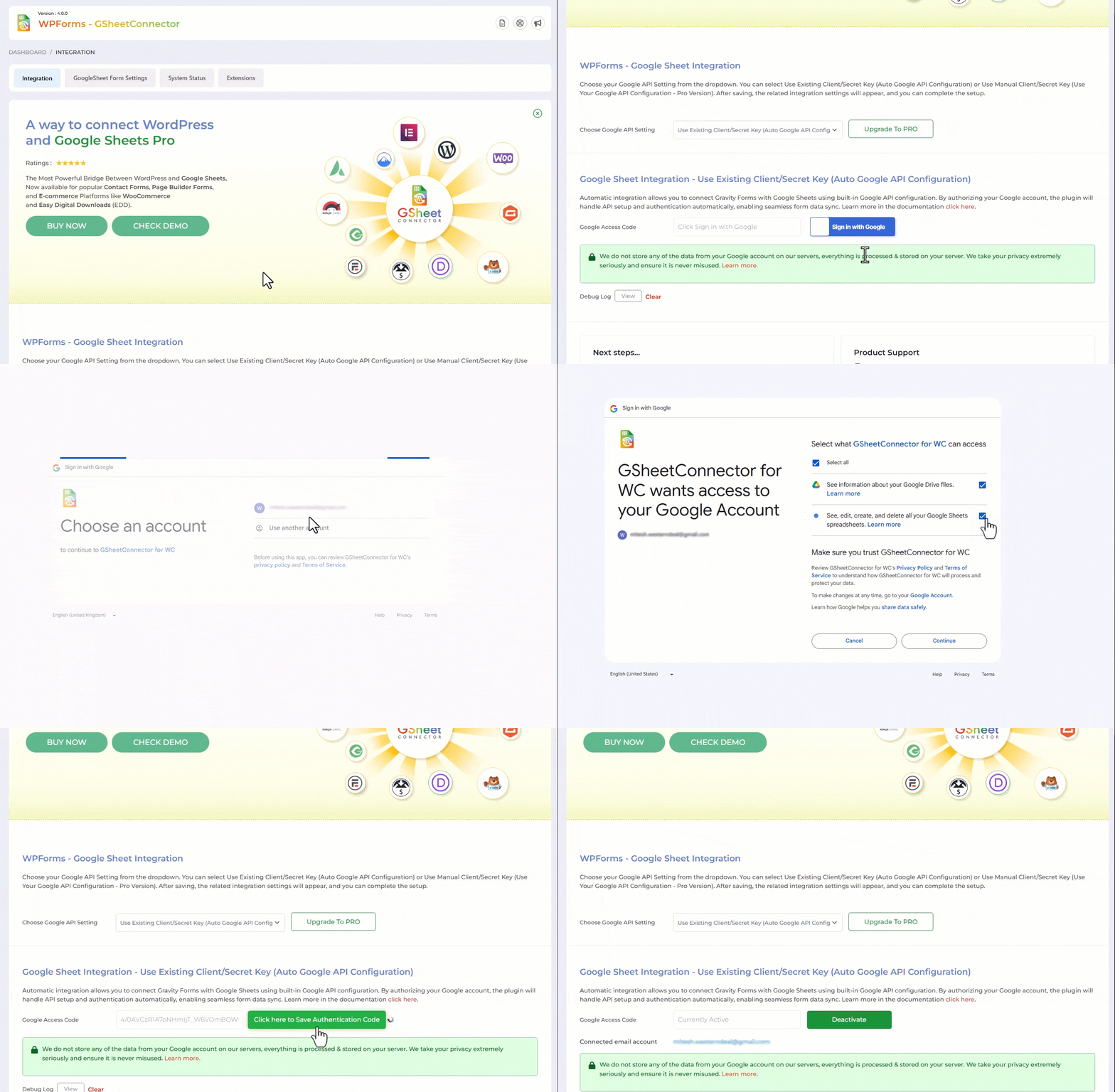
By clicking on the get code button it will redirect you to your Gmail account. Sign in and you will get a message to allow create, edit, delete and view your google sheets.
By clicking on the Allow button you will get your access code. You can copy code and enter the code in the textbox and save it. After saving the code you will see a message in green that the Access code was saved. But do check debug log for invalid access code.
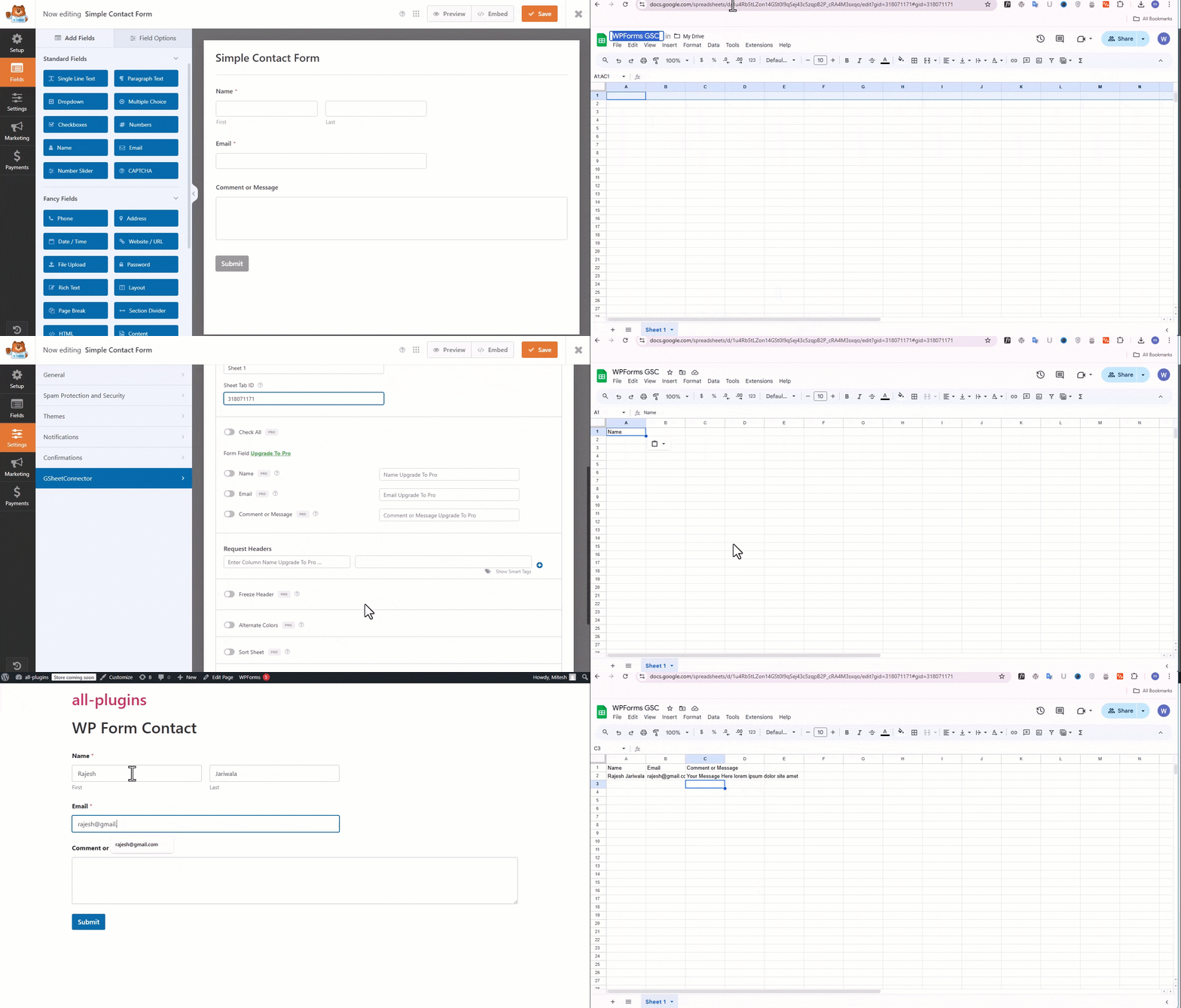
Go to Google Drive, Create a New Google Sheet, and Add Google Sheet Title and Google Sheet Tab Name.
After integration, you will lead to GoogleSheet Form Settings tab. In GoogleSheet Form Settings tab there is a dropdown to select a form in which you will see a listing of all the forms of WPForms. You will have to select one form which you want to connect with your Google sheet.
After selecting a form you will see Google Sheet Settings.
From the Respective Google Sheet copy-paste the “Google Sheet Title” and “Google Sheet Tab Name” on the Google Sheets Tab in the WPForm.
Provide Google Sheets Column Header
-
- In the Google sheets tab, provide column names in row 1. Like the first column is “Name”. For each further column, copy-paste the Form label from the WPForms form (e.g. “Name”, “Email”, “Comment-or-Message”, etc).
- The fields name should be with a specific format like if the WPForms field label is “Comment or Message” your google sheet column name should be “Comment-or-Message” same with all the labels (e.g Firstname Lastname = “Firstname-Lastname”, zip code = “zip-code”, etc).
- Lastly, Test your WPForms and verify that the data shows up in your Google Sheet.
- You must pay very careful attention to your naming. This plugin will have unpredictable results if names and spellings do not match between your Google Sheets and WPForms settings.
- Also while inputting the WPForm field label to Google Sheet follow the rules if there is an empty space between the label name it will not send the WPForm data to Google Sheet.
Refer Documentation here
Thanks