
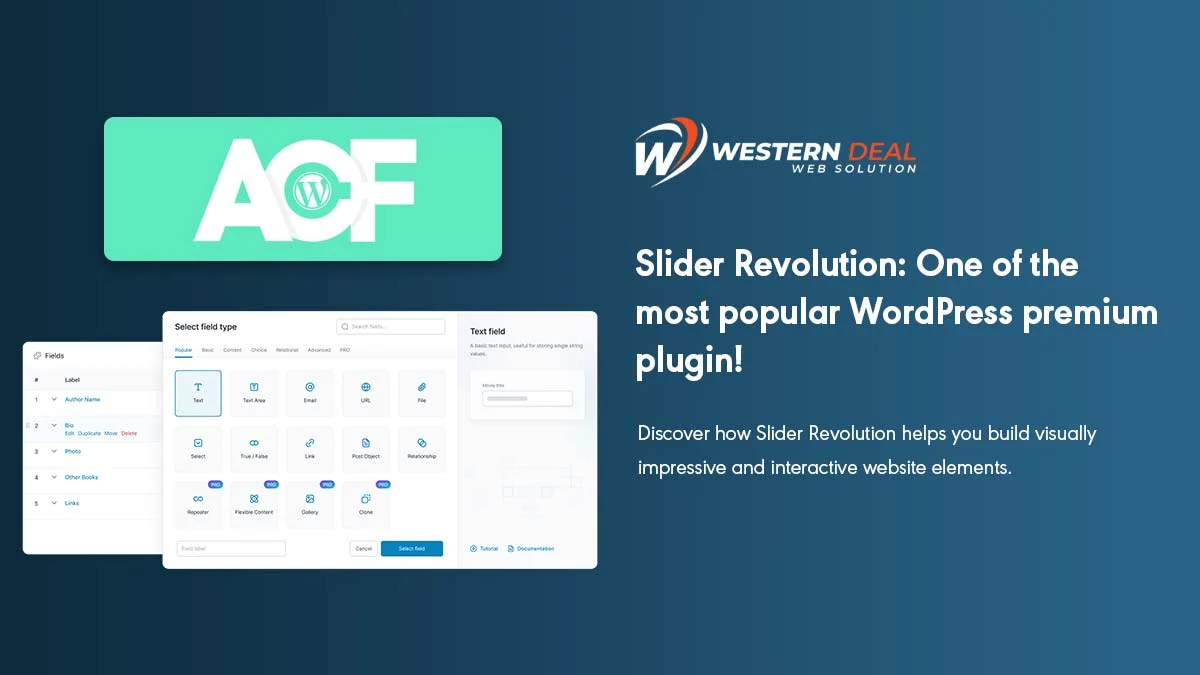
Advanced Custom Fields (ACF) is one of the most popular WordPress plugins that allows you to add custom fields and create flexible content layouts. Whether you’re a developer or a website owner, ACF helps you take full control of your content and display it exactly the way you want.
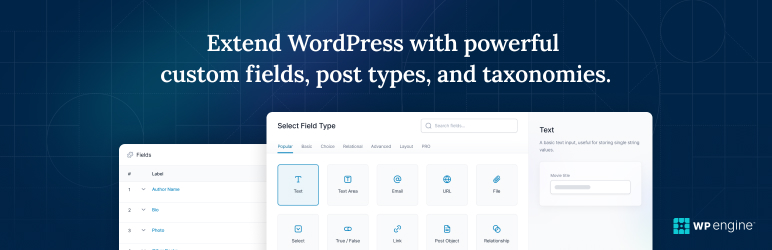
Why Use Advanced Custom Fields?
WordPress by default allows basic content like posts, pages, and media. But if you want to add extra fields like text, images, links, or dropdowns for more customization, ACF is the perfect solution. It’s simple, powerful, and beginner-friendly.
Key Features of ACF:
- Add custom fields to posts, pages, or custom post types.
- Create repeatable fields and flexible content layouts.
- Supports multiple field types like text, image, gallery, checkbox, and more.
- Integrates easily with WordPress themes using simple PHP code.
Step 1: Install Advanced Custom Fields Plugin
There are two ways to install ACF: via WordPress dashboard or manually.
Method 1: Install via WordPress Dashboard
- Login to your WordPress admin panel.
- Go to Plugins > Add New.
- Search for Advanced Custom Fields.
- Click Install Now and then Activate.
Method 2: Manual Installation
- Download the ACF plugin from the WordPress repository.
- Extract the ZIP file on your computer.
- Upload the folder to wp-content/plugins/ using an FTP client.
- Go to your WordPress admin panel, navigate to Plugins, and click Activate on ACF.
Step 2: Configure ACF Fields
Once installed, you can start creating custom fields:
- Go to Custom Fields > Add New.
- Give your Field Group a name (e.g., “Product Details”).
- Click Add Field and choose the field type (text, image, number, etc.).
- Set field settings like labels, instructions, and rules for where the field should appear.
- Click Publish to save the field group.
Example: Adding a Custom Text Field
If you want to add a custom subtitle for posts:
- Field Label: Subtitle
- Field Name: subtitle
- Field Type: Text
- Location: Show this field if Post Type is equal to Post
Step 3: Display ACF Fields in Your Theme
To show the custom field content on the front end, you need to edit your theme files.
<?php
// Display custom field value
$subtitle = get_field('subtitle');
if( $subtitle ) {
    echo '<h2>' . esc_html($subtitle) . '</h2>';
}
?>
Place this code in your template file (e.g., single.php) where you want the subtitle to appear.
Step 4: Using ACF Pro (Optional)
ACF Pro adds advanced features for professional websites:
- Repeater Fields: Create repeating field groups like testimonials or FAQs.
- Flexible Content: Build completely flexible layouts with drag-and-drop.
- Gallery Field: Manage multiple images in a structured gallery layout.
- Options Pages: Add global fields to use site-wide settings.
ACF Pro is a paid plugin, but it’s ideal for developers or large-scale projects that need extra flexibility.
Conclusion
Installing and using Advanced Custom Fields in WordPress is simple and powerful. With ACF, you can create a highly customized website without writing complex code. For extra functionality, consider upgrading to ACF Pro and unlock advanced features like repeaters, flexible content, and options pages.
Start using ACF today and make your WordPress website more dynamic and professional!
