
How to Store Contact Form 7 Data to Google Sheets
Last updated: October 21, 2026
Contact Form 7 is a popular way to add contact forms to WordPress websites. However, when your website receives enquiries, support requests, or sales leads, managing every submission through email alone can become difficult.
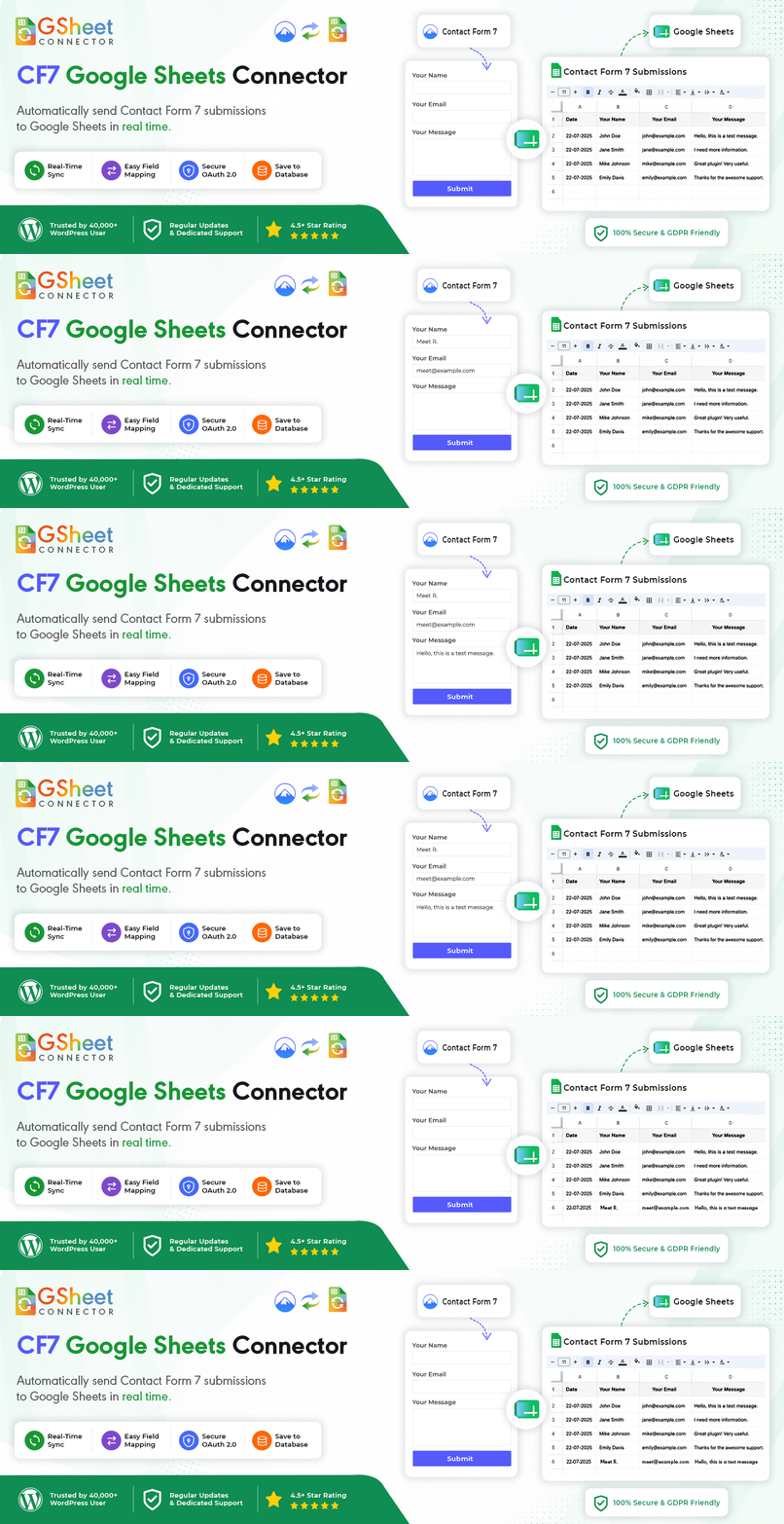
Connecting Contact Form 7 to Google Sheets gives you a convenient way to organize submitted form data in a spreadsheet. Instead of manually copying information from emails, you can automatically send new submissions to a connected Google Sheet and review them in one place.
In this guide, you’ll learn how to connect Contact Form 7 to Google Sheets using CF7 Google Sheets Connector, configure your spreadsheet, match form fields to columns, test the integration, and troubleshoot common problems. If you are evaluating the plugin before installing it, read our Contact Form 7 Google Sheets Connector review as well.
Why Connect Contact Form 7 to Google Sheets?
Saving form submissions in Google Sheets can help you:
- Organize enquiries: Keep names, email addresses, messages, and other submitted fields in a structured spreadsheet.
- Reduce manual work: Avoid repeatedly copying information from notification emails.
- Collaborate with your team: Share the spreadsheet with authorized colleagues who need to review or process enquiries.
- Filter and analyze submissions: Sort, filter, and review incoming leads or requests.
- Create a more manageable workflow: Use spreadsheet data for follow-ups, reporting, and other processes.
The integration does not replace your contact form or its email notifications. It adds a spreadsheet destination for form data, subject to your configuration and a successful submission sync.
What You Need Before Getting Started
Before setting up the integration, make sure you have:
- A WordPress website where you can install and configure plugins.
- Contact Form 7 installed and activated.
- CF7 Google Sheets Connector installed and activated.
- A Google account with access to the spreadsheet you want to use.
- At least one Contact Form 7 form with named fields.
You can install CF7 Google Sheets Connector from the official WordPress.org plugin directory.
For additional product details, see the CF7 Google Sheets Connector PRO page.
Step 1: Install and Activate the Required Plugins
First, confirm that Contact Form 7 is active on your website.
- Log in to your WordPress dashboard.
- Navigate to Plugins → Add New Plugin.
- Search for Contact Form 7 if it is not already installed.
- Install and activate it.
- Search for CF7 Google Sheets Connector.
- Install and activate the connector.
If you already use Contact Form 7, you do not need to create a new form unless your website requires one.
After activation, open the Contact Form 7 area in your dashboard and look for the connector’s Google Sheets integration settings. Menu labels may vary slightly depending on the installed plugin version.
Step 2: Connect Your Google Account
The connector needs permission to access the Google Sheets account you intend to use.
- In your WordPress dashboard, open the Google Sheets integration settings provided by the connector.
- Choose the recommended Google account connection option.
- Sign in to the Google account that should access your spreadsheet.
- Review the requested permissions.
- Approve the connection if the account and permissions are correct.
- Return to WordPress and confirm that the integration reports a successful connection.
The recommended Quick Connect method uses Google OAuth 2.0 and does not require you to create your own Google Cloud project or API credentials. Other authentication methods may be available for more advanced configurations.
Tip: Connect the Google account that owns the spreadsheet or has the necessary access to it. If you use a separate business account, make sure that account can open and edit the intended spreadsheet.
For more detailed instructions, refer to the Google integration documentation.
Step 3: Create or Prepare Your Google Sheet
Next, create a spreadsheet or open an existing Google Sheet where you want to store Contact Form 7 submissions.
For this example, imagine your form collects a visitor’s name, email address, phone number, and message.
Your Contact Form 7 form could contain these fields:
[text your-name]
[email your-email]
[tel your-phone]
[textarea your-message]
The names after the field types—for example, your-name and your-email—are the field names used to identify the submitted values.
In the first row of your Google Sheet, create matching column headers:
| your-name | your-email | your-phone | your-message |
|---|---|---|---|
| Example Name | [email protected] | 5551234567 | Sample enquiry |
The sample row above is for illustration only. Your actual spreadsheet should have the headers in row 1, with each new form submission appearing as a new row beneath them.
Important: In the free connector version, the column headers should match the corresponding Contact Form 7 field names. If the form uses your-email, for example, do not assume that a column called Email Address will map to it automatically.
If you want to record a submission date, follow the connector’s current instructions for its supported date field or special mail tag and use the appropriate header.
Step 4: Find Your Google Sheet and Tab Details
Depending on the connection method and connector version, you may need to enter spreadsheet details manually.
These commonly include:
- Sheet Name: The name of your Google spreadsheet.
- Sheet ID: The unique identifier of the spreadsheet.
- Tab Name: The name of the worksheet inside that spreadsheet.
- Tab ID: The identifier of the worksheet tab.
To locate the Sheet ID, open the spreadsheet in your browser. It is the long identifier in the URL between /d/ and /edit.
A spreadsheet URL generally follows this pattern:
https://docs.google.com/spreadsheets/d/YOUR_SHEET_ID/editThe worksheet’s tab ID is usually represented by the gid value in the URL when that tab is selected.
Copy the correct details carefully. A spreadsheet can contain multiple worksheet tabs, so make sure you select the tab where you created your column headers.
If your connector version offers a sheet-selection dropdown, you may be able to select the spreadsheet and tab instead of entering all these details manually.
Step 5: Connect Your Contact Form 7 Form to the Spreadsheet
Now configure the form that should send its submissions to Google Sheets.
- In WordPress, go to Contact → Contact Forms.
- Edit the Contact Form 7 form you want to connect.
- Open the Google Sheets tab supplied by the connector.
- Select the appropriate connection or feed option available in your installed version.
- Enter or select the spreadsheet and worksheet details.
- Review the form fields and corresponding spreadsheet headers.
- Save the configuration.
For the free version, make sure the column headers in your spreadsheet match the form’s field names. Advanced options such as selecting individual fields, renaming headers, or sending one form to multiple spreadsheet destinations may depend on your connector version and licence.
For version-specific steps, follow the free-version feed settings guide.
Step 6: Submit a Test Entry
Do not assume the integration is working simply because the Google account is connected. Test the complete process before relying on it for real enquiries.
- Open the website page containing your Contact Form 7 form.
- Enter sample information that you can safely use for testing.
- Submit the form.
- Confirm that Contact Form 7 reports a successful submission.
- Open the connected Google Sheet.
- Check whether the sample entry appears in a new row.
- Confirm that each value appears under the correct column.
If the data appears correctly, the basic integration is working for that test submission.
If the entry does not appear, review the troubleshooting steps below before collecting live enquiries.
Step 7: Troubleshoot Common Contact Form 7 to Google Sheets Problems
Form submissions are not appearing in Google Sheets
Check the following:
- The Google account connection is still active.
- The correct spreadsheet and worksheet tab are selected.
- The Sheet ID and Tab ID are correct if your configuration uses manual entry.
- The Google account has access to the spreadsheet.
- The form’s field names match the spreadsheet headers.
- The connector settings were saved after configuration.
- The connector’s error log or system-status information does not report an authentication or API problem.
Submit another test entry after correcting any configuration issues.
Some columns are empty
Check the field names in the Contact Form 7 form editor. A small difference between a form field name and a spreadsheet header can prevent the value from appearing in the expected column.
For example, your-email and your-email-address are different field names. Use the actual names from your form and follow the connector’s header-formatting requirements.
Also check whether the field is populated in the submitted form and whether your connector version supports the field or mail tag you are trying to send.
The Google account connection has stopped working
Return to the connector’s integration settings and check the connection status. If authentication has expired or access has been revoked, reconnect the account and test the form again.
If the problem persists, review the connector’s error log for a more specific message before changing Google permissions or other configuration.
The form works, but the spreadsheet does not update
A successful form submission and a successful spreadsheet sync are separate things to verify. Check the connector’s diagnostic information, confirm the spreadsheet settings, and submit a new test entry after correcting the issue.
Avoid repeatedly submitting real customer information while troubleshooting. Use sample data until the integration is working as expected.
Is the Free Connector Enough?
The free version can be suitable when you need a straightforward connection between a Contact Form 7 form and a Google Sheet.
If your workflow needs more control, review the current free-versus-PRO feature differences before choosing a licence. Depending on the feature and version, PRO capabilities can include multiple spreadsheet feeds, advanced field mapping, custom headers, conditional logic, additional mail tags, attachment handling, and local submission storage.
See the CF7 Google Sheets Connector PRO page for current feature details.
Protect Your Form Submission Data
Contact forms can collect personal information, so consider privacy and access controls as part of your setup.
- Collect only the information your website actually needs.
- Restrict Google Sheet access to authorized people.
- Review the sharing settings of the spreadsheet and the connected Google account.
- Explain relevant data collection and processing in your privacy notice.
- Apply an appropriate retention policy to old submissions.
- Avoid placing sensitive information in a broadly shared spreadsheet.
Google Sheets is a destination for submitted data, not a substitute for your privacy, security, or data-retention responsibilities. Review your website’s legal requirements and the permissions requested by the connector before authorizing the connection.
Frequently Asked Questions
Can Contact Form 7 send submissions to Google Sheets automatically?
Yes. With a compatible connector configured correctly, new Contact Form 7 submissions can be sent to the connected Google Sheet without manually copying the data.
Do I need coding skills to connect Contact Form 7 to Google Sheets?
For the standard connector setup, coding is generally not required. You need to install the plugins, connect your Google account, configure the spreadsheet, match the field names, and test the integration.
Can I use an existing Google Sheet?
Yes. You can generally connect an existing spreadsheet as long as the connected Google account has the necessary access and you configure the correct worksheet and field headers.
Why must my spreadsheet headers match my Contact Form 7 field names?
The free connector uses Contact Form 7 field names to map submitted values to the corresponding spreadsheet columns. Matching names helps ensure that values are placed in the intended columns. Advanced header customization may depend on the version or licence you use.
Can I connect more than one Contact Form 7 form?
You can configure forms individually. The exact number of connections, and whether one form can send submissions to multiple spreadsheets, depends on the connector’s current feature set and licence.
Will Google Sheets replace my Contact Form 7 email notifications?
No. The spreadsheet integration adds another destination for form data; it does not inherently replace Contact Form 7’s email configuration. Test the form and its email notifications separately.
What should I do if Google Sheets stops receiving submissions?
Check the account connection, spreadsheet and tab details, field headers, and connector diagnostics. If your connector version provides local submission storage or resend functionality, review those options as part of your recovery process.
Conclusion
Connecting Contact Form 7 to Google Sheets is a practical way to organize form submissions, make enquiries easier to review, and reduce manual data entry.
Install and activate Contact Form 7 and CF7 Google Sheets Connector, connect the appropriate Google account, prepare the spreadsheet headers, configure the form, and submit a test entry. Once you have confirmed that the values arrive in the correct columns, you can use the spreadsheet as part of your regular enquiry-management workflow.
Ready to get started? Download CF7 Google Sheets Connector from WordPress.org and follow the setup documentation.
