
WordPress forms help you collect contact inquiries, leads, customer details, registrations, and other important information. But managing submissions across email notifications and your WordPress dashboard can become difficult as your website grows.
Connecting your WordPress forms to Google Sheets gives you a central place to organize and review form submissions. You can share spreadsheet data with your team, filter entries, create reports, and reduce repetitive manual data entry.
GSheetConnector provides integrations for supported WordPress form plugins, page builder forms, and eCommerce platforms. In this guide, you’ll discover the available integrations, how the connection generally works, and where to find setup instructions for your specific plugin.
Why Connect WordPress Forms to Google Sheets?
Sending form submissions to a spreadsheet can simplify everyday workflows for website owners, marketers, agencies, and online businesses.
Here are some of the main benefits:
- Centralized form data: Keep submissions in a spreadsheet that your team can access.
- Easier lead management: Sort and filter inquiries by date, name, email address, or other available fields.
- Simplified reporting: Use spreadsheet formulas, filters, charts, and other Google Sheets features to analyze collected information.
- Less manual work: Reduce the need to copy information from emails or the WordPress dashboard into a spreadsheet.
- Team collaboration: Share a spreadsheet with authorized team members who need access to the information.
- More organized workflows: Make form submissions easier to review and manage as your website receives more inquiries.
The exact workflow and available features depend on the WordPress plugin and connector you use.
Which WordPress Forms Can You Connect to Google Sheets?
GSheetConnector offers integrations for several popular WordPress form plugins and platforms. Choose the connector that matches the form builder or service you already use.
Contact Form 7 to Google Sheets
If your website uses Contact Form 7, you can connect supported forms to Google Sheets and send form submissions to a spreadsheet.
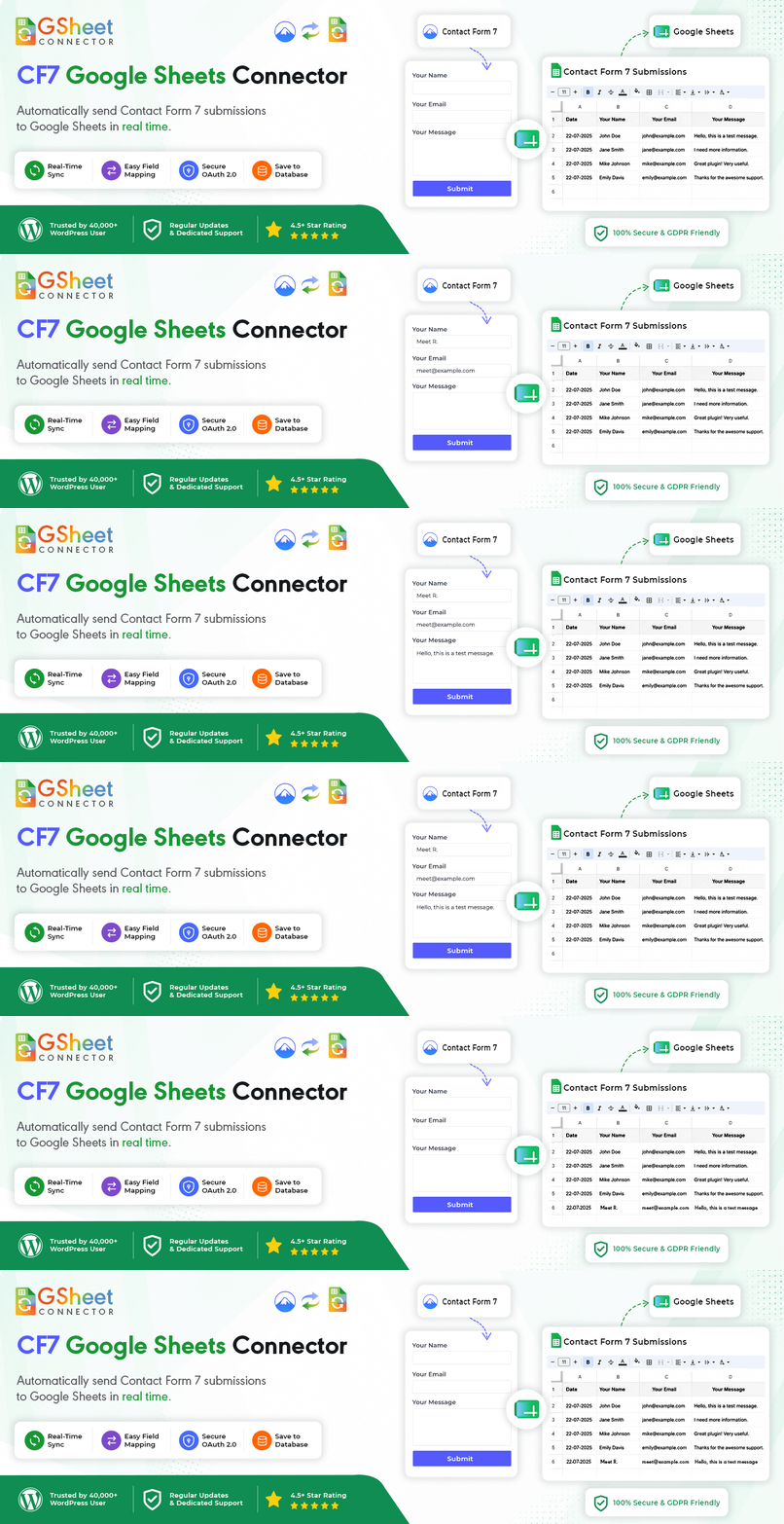
The CF7 Google Sheets Connector is designed for Contact Form 7 users.
- Download the free Contact Form 7 Google Sheets Connector
- Read the Contact Form 7 integration documentation
For detailed setup instructions, read our dedicated guide: How to Store Contact Form 7 Data to Google Sheets. If you are evaluating the connector first, see our Contact Form 7 Google Sheets Connector review.
WPForms to Google Sheets

WPForms users can connect supported forms to Google Sheets to organize collected information in a spreadsheet.
Explore the WPForms Google Sheets Connector.
Gravity Forms to Google Sheets

Gravity Forms is used to create contact forms, registrations, and other data-collection forms.
The Gravity Forms Google Sheets Connector connects supported Gravity Forms submissions with Google Sheets.
Ninja Forms to Google Sheets

If you build forms with Ninja Forms, explore the Ninja Forms Google Sheets Connector.
Forminator to Google Sheets

Forminator users can explore the Forminator Google Sheets Connector to connect supported form submissions with Google Sheets.
Check the product page and documentation for the applicable setup instructions and feature availability.
Formidable Forms to Google Sheets

For websites using Formidable Forms, the Formidable Forms Google Sheets Connector provides an integration option for sending supported form data to Google Sheets.
Read the Formidable Forms integration documentation.
Fluent Forms to Google Sheets

Jet Forms to Google Sheets

Connect Page Builder Forms to Google Sheets
Some WordPress websites use forms included with a page builder or theme rather than a separate form plugin. If your form is built with a supported page builder, choose the connector that matches it.
Elementor Forms

Explore the Elementor Forms Google Sheets Connector for the available integration for Elementor forms.
Divi Forms
If your website uses Divi, explore the Divi Forms Google Sheets Connector.
Avada Forms
For websites built with Avada, visit the Avada Forms Google Sheets Connector.
Review each connector’s product page and documentation to confirm compatibility and the features available for your setup.
Connect WooCommerce Orders to Google Sheets
Contact form submissions are not the only information you may want to organize in a spreadsheet. If you operate a WooCommerce store, sending supported order information to Google Sheets can help with reporting and operational workflows.

The WooCommerce Google Sheets Connector provides an integration for supported WooCommerce order data.
For digital product stores, explore the Easy Digital Downloads Google Sheets Connector.
Choose the integration that matches your platform. A form connector and an eCommerce connector serve different workflows, so check the relevant product documentation before installing one.
How Does a WordPress-to-Google-Sheets Integration Work?
The exact setup varies by connector, but the general process follows these steps.
Step 1: Install the Correct Connector
Identify which WordPress plugin creates your form. Install the matching GSheetConnector integration and make sure your form plugin is active.
Step 2: Connect Your Google Account
Follow the connector’s authentication instructions to authorize the connection to Google Sheets. Review the requested permissions before granting access.
Step 3: Select Your Spreadsheet
Choose an existing Google spreadsheet or create one if the connector supports that workflow. Configure the spreadsheet and worksheet or tab according to the connector’s instructions.
Step 4: Configure the Form Integration
Follow the relevant connector documentation to select your form and configure any required field mapping or settings. Available options may differ between integrations and between free and paid versions.
Step 5: Submit a Test Entry
Submit a test form using sample information. Confirm that the expected values arrive in the correct spreadsheet columns and that the connection works as intended.
If the submission does not appear, check the connector’s setup instructions, authentication status, field configuration, and troubleshooting documentation.
Frequently Asked Questions
Can I send WordPress form submissions to Google Sheets automatically?
Yes. A compatible integration can send supported form submissions to Google Sheets after you configure the connection. The exact behavior depends on the form plugin and connector settings.
Do I need coding skills to connect WordPress forms to Google Sheets?
Many integrations are designed to be configured through plugin settings rather than custom code. Follow the documentation for your selected connector to understand its requirements.
Can I use Google Sheets with Contact Form 7?
Yes. The CF7 Google Sheets Connector is designed to connect Contact Form 7 with Google Sheets. See our Contact Form 7 setup guide for detailed instructions.
Can I connect different WordPress form plugins to the same Google Sheet?
This depends on the connectors and their supported configuration options. Check the documentation for each integration to confirm whether your intended spreadsheet and worksheet arrangement is supported.
Is a Google Sheets connector available for WooCommerce?
Yes. GSheetConnector offers a WooCommerce Google Sheets Connector for supported WooCommerce order data.
What should I do if form submissions are not appearing in Google Sheets?
Start by checking the Google account connection, selected spreadsheet, worksheet, form configuration, and any required field mapping. Then follow the troubleshooting instructions for your connector.
Should I use a free or paid connector?
Start by reviewing the free connector and its documentation. If your workflow requires additional capabilities, compare the current free and paid feature lists on the relevant product page before choosing a plan.
Connect Your WordPress Forms to Google Sheets with GSheetConnector
Connecting WordPress forms and supported eCommerce platforms to Google Sheets can make form data easier to organize, review, and share with your team.
GSheetConnector offers integrations for several popular WordPress form builders, page builder forms, and eCommerce platforms. Choose the connector that matches your website, follow its setup documentation, and test the connection with a sample submission.
Explore GSheetConnector integrations to find the right starting point for your WordPress workflow.
